
How to Convert HEIC to JPG
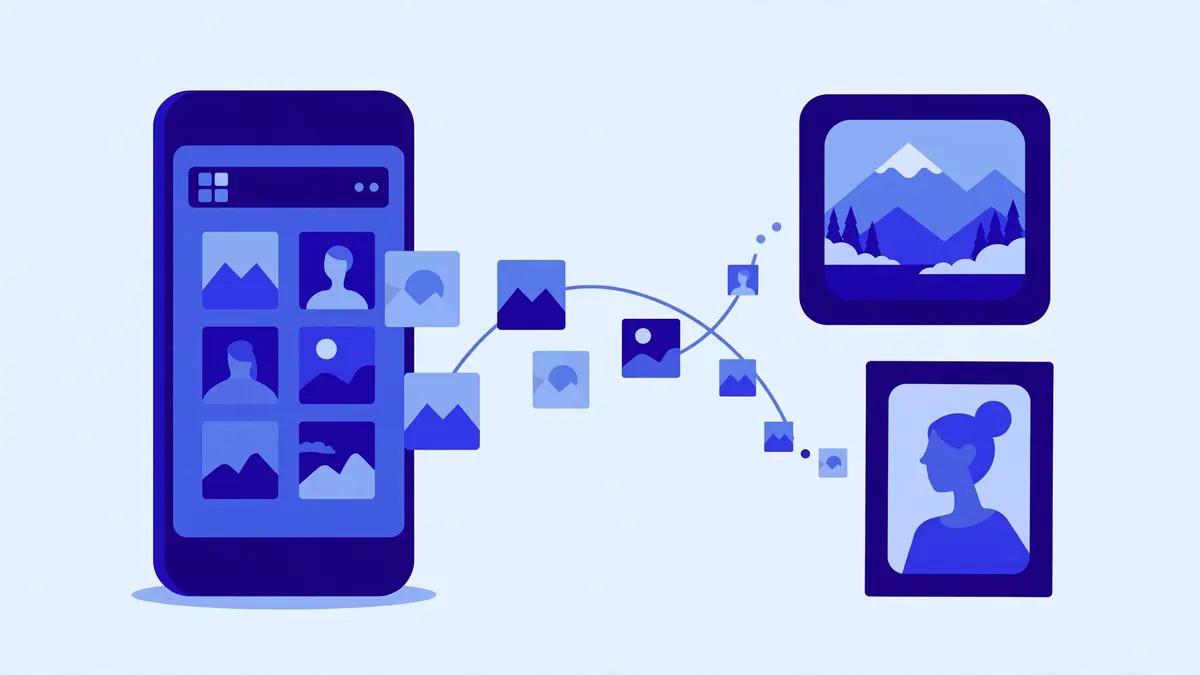
To convert HEIC to JPG on this site, open the HEIC converter, add your photos, leave JPG as the output and start the conversion. The work runs on the connected service, because most browsers cannot open a HEIC file at all. The JPG you download opens on any computer, phone, website form or app, which is the whole point of the change.
HEIC is the format an iPhone saves when it wants the same picture in about half the space of a JPG. On the phone that is pure gain. The trouble starts when the photo leaves the phone and lands somewhere that has never heard of the format.
Why iPhone photos get stuck as HEIC
Apple switched the iPhone camera to HEIC in 2017, and several Android makers offer the same format on their phones. The reason is storage. A HEIC photo holds roughly the same picture as a JPG in about half the space, so a phone fills up half as fast.
The cost shows up everywhere else. A Windows PC asks for a codec before it will display the picture. A job application form rejects the upload and asks for a JPG instead. An older photo app shows a blank tile. None of these places has a fault. Their makers built them before HEIC reached them, and the format never arrived.
Converting to JPG trades a little of that storage efficiency for a file the whole world accepts. If the photo heads somewhere that already speaks HEIC, leave it as it is. If it heads anywhere else, the image converter family on this site is where the change happens, and this guide covers the photo format most people bring.
How to convert HEIC to JPG on this site
The job takes four steps, all in the browser.
- Open the HEIC converter. It takes up to 50 photos in one queue, each up to 50 MB, which covers a camera roll batch as easily as a single picture.
- Add your photos. Drag them onto the box, choose them from your device, or add a whole folder. Each photo lands in the queue as a row with its name and size, so you can spot a wrong pick before anything runs.
- Leave JPG as the output on each row, or change it where a photo needs something else. The settings on the row hold a quality slider and a maximum width. The next section explains the other outputs the same page offers.
- Press Convert and follow the progress on each row. Download the JPGs one by one, or take the whole batch together in a single ZIP file.
Your original photos stay exactly as they were, because the JPG is a new file the service builds from the HEIC. One practical point: the service deletes uploads and results one hour after a conversion finishes, so download the results inside that hour and file them with the rest of your photos.
JPG, PNG or WebP: which output to pick
JPG is the default because almost every HEIC heads for it in the end. Every PC, website, form and app accepts it. Set the quality high and the picture looks the same to the eye as it did on the phone, in a file that has grown somewhat from the HEIC original.
PNG is the pick when the photo is heading into an editor and every pixel matters. PNG keeps what the HEIC holds without throwing detail away in the render, and the price is a much larger file. For a photo you plan to retouch carefully, the trade usually pays off.
WebP sits between the two. It keeps much of the efficiency of HEIC and opens in every current browser, so it suits a photo headed for a web page. The JPG converter covers the JPG format itself when your starting file is already a JPG, and it converts onward to PNG and WebP from there.
The quality slider and the width setting
Two settings sit on each row, and both change what comes back. The quality slider sets the trade: HEIC packs a picture tightly, so a JPG at high quality looks the same to the eye and grows in size compared with the HEIC. Slide the quality down and the file shrinks while fine detail softens first. The maximum width caps the width of the result, which suits a photo headed for a form or a web page with a size limit. Leave the width alone when the photo heads for an editor or a print.
The same page offers PDF as well, which turns the photo into a document page. Forms and offices that ask for documents instead of image files are the audience for that output. A folder of photos still travels better as JPGs gathered in one ZIP, so treat PDF as the single photo option.
What the conversion cannot do
A Live Photo does not survive as a moving picture. The movement lives in a separate video file beside the HEIC, and this page converts the still picture the HEIC holds. If you need the moving clip as well, it has to come off the phone as a video in its own right.
The conversion also cannot add detail. A JPG at any quality setting holds at most what the HEIC held, and a photo that was soft or dark on the phone stays soft or dark in the JPG. Converting onward to another format later cannot restore what the JPG step set aside, either.
And the work happens online, not on your device. Most browsers cannot read HEIC, so the file travels to the connected service, converts there, and comes back as a download. The service deletes uploads and results one hour after the conversion finishes.
After you download the JPGs
Open one result and look at it beside the photo on your phone before you delete anything. A wrong file in the queue or a width set too small shows up at once, and catching it now costs a glance. Keep the HEIC originals as your master copies. They are the smallest, fullest version of each photo you own, and any output you need later can be made from them again.
When the next batch of phone photos needs the same treatment, the HEIC converter is the page to return to. The routine stays the same: add the photos, leave JPG on the rows, convert, and download inside the hour.
Frequently Asked Questions
Why will my iPhone photos not open on my computer?
Since 2017, iPhones have saved photos as HEIC, a format many computers and apps still cannot read. Windows needs an extra codec before it can show one, and plenty of websites refuse the upload outright. A JPG opens everywhere, which is why most HEIC files end up converted.
Does converting HEIC to JPG lose quality?
JPG stores a picture with lossy compression, so the converter encodes the file again and sets a little of the original data aside. At a high quality setting the result looks the same to the eye. Keep the HEIC as your master copy, because it holds the fullest version of the photo.
Can I convert many photos at once?
The HEIC converter queues up to 50 photos at a time, each up to 50 MB. Set the output on each row, convert, and download the results one by one or together in a single ZIP file.
What happens to a Live Photo when I convert it?
A Live Photo keeps its moving part in a separate video file, and the HEIC itself holds the still picture. The converter takes that still picture, so the JPG shows the moment you framed, without the short movement around it.